App
The S2GOS App provides a graphical interface for discovering processes, editing
requests, submitting jobs, and inspecting their progress and results. It is
bundled with s2gos-client and runs in a browser or inside Jupyter. Start with the
local test service to learn the workflow.
Open from a terminal
After creating local-client.yaml as described in Getting started:
s2gos-client show-app --config local-client.yaml
Keep the terminal open while using the App. Stop it with Ctrl+C when finished. For hosted work, use your hosted profile instead and complete authentication for that service. Check the selected service in the App before submitting a request, especially when you switch between deployments.
Open from Python or Jupyter
The following helper returns both the client and App handles so you can update request forms and stop the local App server later:
from typing import Literal

from cuiman.app import App

from s2gos_client import Client, create_client


def open_app(display: Literal["browser", "notebook"] = "browser") -> tuple[Client, App]:
    client = create_client(api_url="http://127.0.0.1:8008", auth={"auth_type": "none"})
    try:
        app = client.show_app(display=display, height=640)
    except Exception:
        client.close()
        raise
    return client, app


client, app = open_app(display="browser")
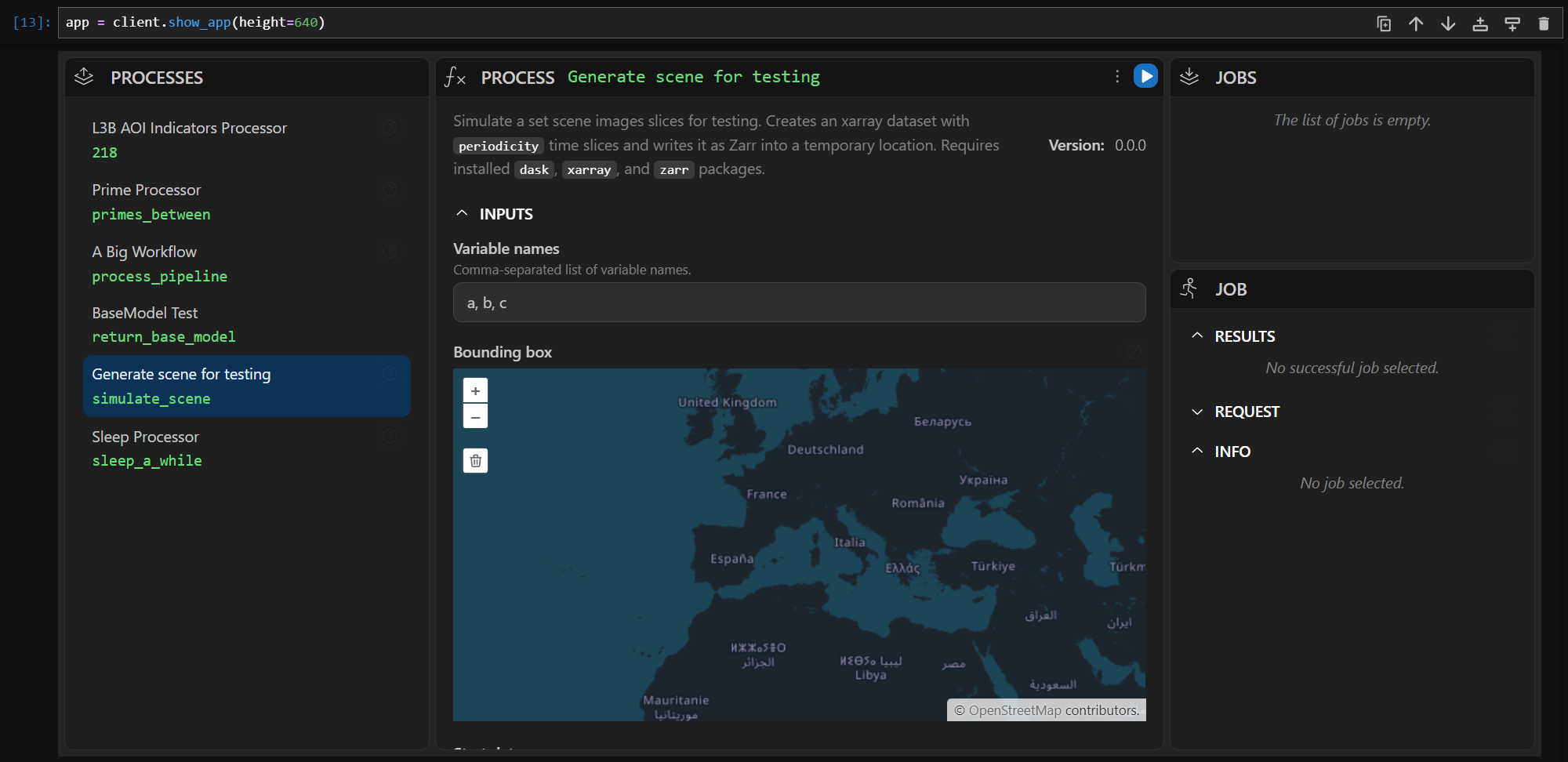
For the local testing service used above you should now see a UI like this:
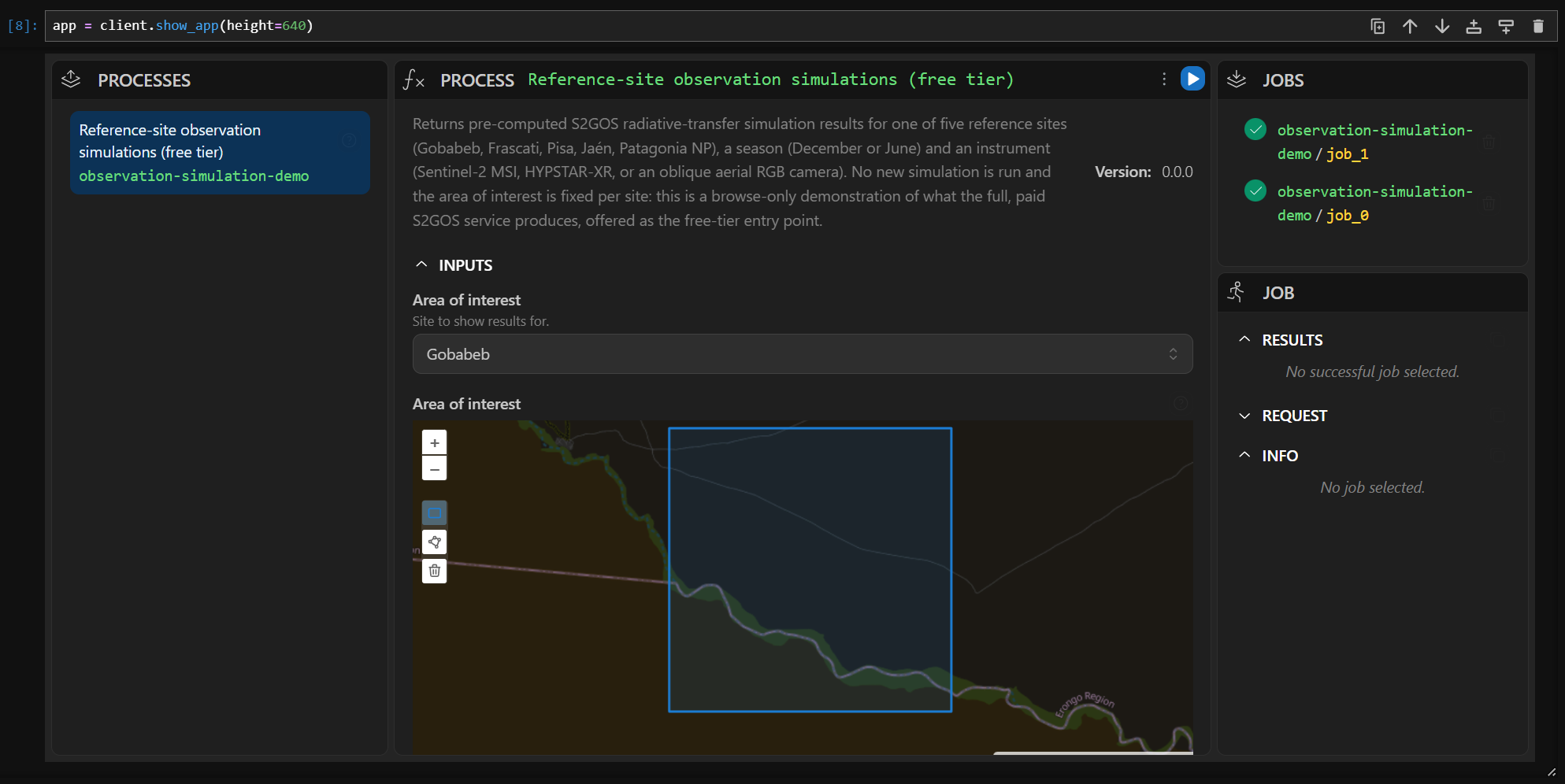
And using the S2GOS free tier demo service:
In a notebook, use open_app(display="notebook") or just open_app() instead.
The height setting controls the embedded display height. Keep the notebook
kernel or Python process alive while using the App. For a standalone browser
session, run python -m examples.guides.app; it remains active until Ctrl+C.
For S2GOS, adapt the helper to use create_client() with your configured profile
or create_client(config_path="s2gos-client.yaml"). The client uses Cuiman's App
implementation; its appearance depends on the installed App build and any
EOZILLA_APP_DIST override. The process and job workflow is the same.
Complete a first job
- Open the process catalogue and select
primes_betweenon the local service. Read its description and input constraints. - In its request form, set
min_valto10andmax_valto80. Review the values before executing the request. - Click the Execute process arrow once. Record the job ID shown for that execution.
- In JOBS, select that job and inspect the JOB panel. Wait for
successful; for a failure, read the message rather than immediately resubmitting. - Expand RESULTS if needed. The
return_valuecontains the calculated primes.
The catalogue and forms come from the selected service's process descriptions. A hosted S2GOS deployment may offer different processes and more complex inputs, including paths, scene specifications, or output locations. Read their field descriptions and use paths accessible to the processing service. A path on your laptop is not automatically uploaded to a remote worker.
For longer jobs, you can return later using the same service and account. Closing the App tab does not dismiss a submitted job. To continue analysis in Python, copy the job ID and follow Working with results.
Update a request from Python
Open the local sleep_a_while process in the App first, then define and call:
def set_duration(app: App, duration: float = 2) -> None:
    request = app.get_process_request("sleep_a_while")
    if request is None:
        raise ValueError("Open the sleep_a_while process in the App first.")
    if request.inputs is None:
        request.inputs = {}
    request.inputs["duration"] = duration
    app.set_process_request("sleep_a_while", request)


set_duration(app, duration=2)
The helper reads the current form request, changes its duration, and writes it back. Other inputs and output settings are preserved. This changes the draft request; it does not submit a job or change the inputs of an existing job. Review the updated form and execute it in the App when ready.
Stop the App server
When you are done with a Python or notebook session:
def close_app(client: Client, app: App) -> None:
    try:
        app.serve_result.stop()
    finally:
        client.close()


close_app(client, app)
Closing a browser tab alone leaves the local App server running. Stop it before repeatedly launching new instances from a notebook. This cleanup closes local resources and does not cancel processing jobs.
If an embedded App does not display, try browser mode with the same configuration.
If the App opens but cannot list processes, verify the gateway URL and
authentication. For a notebook running on a remote machine, 127.0.0.1 refers
to that machine; the service must be reachable from the notebook environment.